

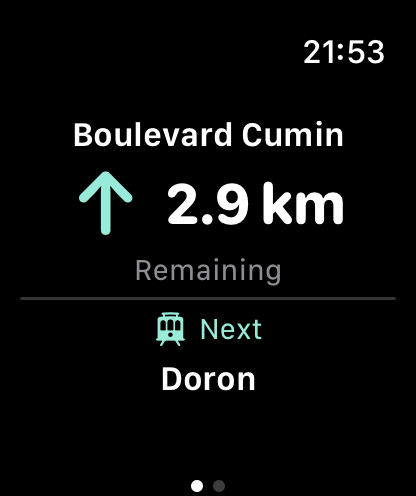
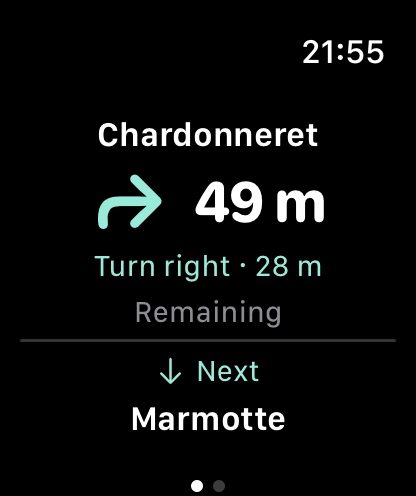
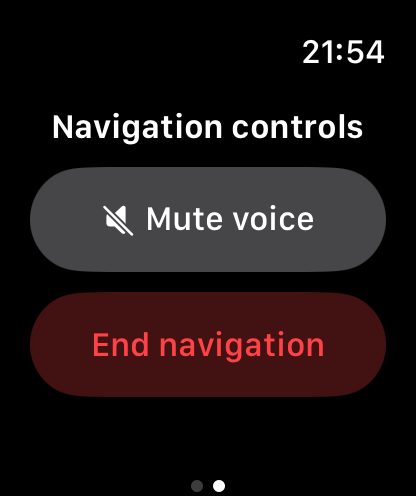
The guidance you need at a glance
The navigation page shows the current piste or lift, the remaining distance on that section, and the next piste or lift. The distance is for the current section, rather than the whole journey.
An arrow points ahead when there is no upcoming turn, or left or right at a route junction. The next-section preview skips intermediate walking connections to show the piste or lift beyond them. A final walk to your destination stays visible.
Swipe to control navigation
Keep guidance and controls on separate pages. Swipe left or right to move between them. On compatible Garmin watches without a touchscreen, use the watch buttons to change pages and select a control.
Mute or restore the phone’s spoken navigation without changing the route. Choose End navigation and confirm to stop guidance on both the phone and watch. Simply closing the watch app leaves navigation running on the phone.
Choose your companion
Watch navigation and controls require an active Premium membership. Your phone plans the route and provides location updates; the watch is a companion display, without its own navigation map, route planning or independent GPS tracking.
Swipe the table horizontally to read all columns.
| Watch | Phone | Connection |
|---|---|---|
| Apple Watch | iPhone | Pair with your iPhone, then install the compatible Mountainmapper watch app. |
| Wear OS | Android | Pair with your Android phone. Google Play services and compatible phone and watch apps are required. |
| Garmin Connect IQ | iPhone or Android | Use a compatible watch that supports Connect IQ watch apps. Pair in Garmin Connect, then connect it in Mountainmapper settings. |
Get ready in three steps
1. Install compatible Mountainmapper versions on your phone and watch. Pair the devices, enable Bluetooth and activate or restore Premium on the phone.
2. For Garmin, pair the watch in Garmin Connect, then open Mountainmapper → Settings → Garmin watch → Connect Garmin watch. For Apple Watch and Wear OS, use the watch paired with your phone.
3. Plan and start navigation on your phone, allow the required location access, then open Mountainmapper on the watch. Check the current section and sound controls while safely stopped before setting off.
If the watch is waiting for your phone
Check that navigation has actually started on the phone, Premium is active, both apps are up to date, and the devices remain connected. For Garmin, also check the connection in Mountainmapper settings and Garmin Connect.
For locked-phone use, allow the location and background access requested by the phone app. Updates depend on the connection and the phone’s operating system. If location is stale, weak or off-route, the watch asks you to check the phone instead of continuing to show guidance.
If a control is not confirmed, check its actual state on the phone before trying again. Stop somewhere safe to resolve a connection problem, and follow resort signs, closures and staff instructions.
FAQ
Can I leave my phone behind?
No. The phone remains responsible for the route and location. Keep it connected, with the required permissions, while navigating.
Does every Garmin watch work?
No. You need a compatible model that supports Connect IQ watch apps. Check the compatible-device list in the watch store for your model; compatibility does not include every Garmin product.
Can I use the watch without Premium?
Watch navigation and controls require an active Premium membership. Activate or restore it in Mountainmapper on your phone.
Will muting hide the directions?
No. Muting changes the phone’s spoken navigation. Visual guidance continues while location and navigation are available.